
Scanning guide
How to Export QR Code and Barcode Scans to CSV
Learn how to export QR code and barcode scan history or selected collections to CSV and handle identifiers safely in spreadsheets.
By OtterSpark · Published
To export QR code and barcode scans to CSV in ScanBatch, finish and review your scan session, choose either the relevant collection or full history, and use the CSV export option. Open or import the resulting file in a spreadsheet while treating barcode values as text so leading zeroes and long identifiers remain intact.
Why CSV works for scan records
CSV is a plain-text table format. Each row represents a record and separators divide values into columns. It is useful because Excel, Apple Numbers, Google Sheets, database tools, and many reporting systems can import it.
Portability is its strength. ScanBatch does not need a direct integration with every spreadsheet product. You decide when to export and where to import the file. That separation also suits field work: core scanning can happen offline, with transfer or upload later.
CSV does not preserve workbook styling, formulas, charts, dropdown lists, or connected-system rules. Think of it as a clean exchange file, not a finished report.
Evidence from a tested export path
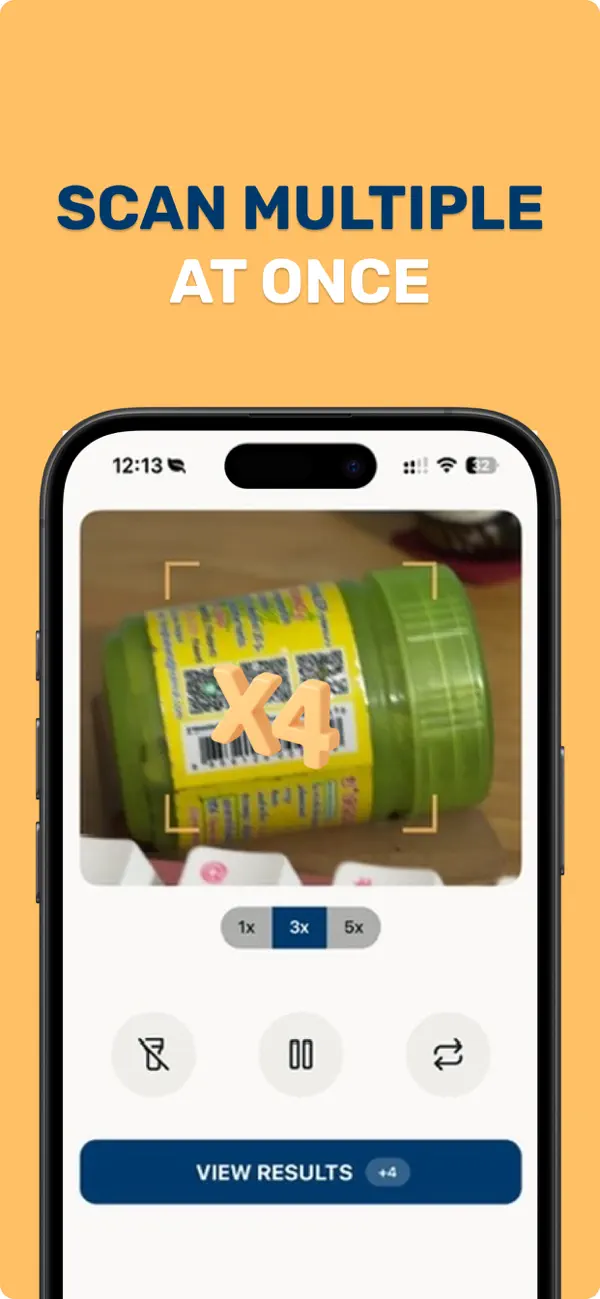
This screenshot was captured from ScanBatch’s real saved-results workflow. We reproduced the core path in the app: review saved scan records, choose the needed history or collection scope, invoke CSV export, and open the resulting file through a spreadsheet import flow. Exact export columns can change with the app version, so inspect the file before building formulas around it.
For import practice, download this representative scan CSV example. It uses fictional rows and illustrative headers; it is not a verbatim ScanBatch export.
Choose collection export or full-history export
ScanBatch can export full scan history or individual collections. Pick the smallest useful scope.
Export an individual collection when
- One site, room, event, or delivery needs its own report.
- You want to send a file without unrelated scan records.
- Separate operators or dates will be reconciled independently.
- A collection name already defines the job boundary.
Export full history when
- The report intentionally combines sessions.
- You are making an archive of all retained scan records.
- A later process will filter and split the complete dataset.
Full history is not automatically better. Large mixed exports require more filtering and create more opportunity to include irrelevant records. A descriptive collection is often the safer reporting unit.
For advice on building those units, see the barcode inventory workflow and asset tracking with collections.
Review records before creating the file
Check the collection while you still understand the physical context. Confirm that the session covers the intended area. Look for missing labels, test scans, and repeated values that conflict with your rules.
A duplicate is not always an error. Five matching UPC records may represent five products. Two captures of a unique event ticket may require review. ScanBatch saves decoded values; your workflow decides what each repeated value means.
Add or clarify notes before export. Notes are most useful when concise and consistent, such as “damaged,” “moved,” or “manual review.” Avoid editing exported values to hide uncertainty; flag the issue and preserve the original capture.
Export and name the CSV clearly
Use ScanBatch’s export action for the collection or history you selected. When saving or sharing the file, use a name that communicates scope and date, for example:
warehouse-west-aisle-04-2026-08-07.csvevent-morning-entry-2026-08-07.csvvehicle-3-asset-audit-2026-08-07.csv
Avoid ambiguous names such as scans-final.csv. If another export is required, do not overwrite the first file until you know which one is authoritative.
Handle exports according to the sensitivity of their contents. A QR code can encode contact details, URLs, identifiers, or arbitrary text. Use approved storage and sharing channels, and remove files from shared locations when retention is no longer needed.
Import identifiers as text
Barcode values can look like numbers while behaving as identifiers. Spreadsheet software may remove leading zeroes, convert long values to scientific notation, or interpret date-like strings as dates.
Use the spreadsheet’s import flow when possible and set the scan-value column to text. Then verify a few records against ScanBatch, especially values beginning with zero and long numeric strings.
Do not perform arithmetic on an identifier. If you need quantities, count matching rows or add a dedicated numeric quantity column.
Excel workflow
Use Excel’s text/CSV import tools to preview columns and assign text data types. Confirm the separator and character handling shown in the preview. After loading, check row count and preserve the imported workbook as a separate file.
Numbers workflow
Open or import the CSV, then inspect the value column’s format. Change it to text if automatic formatting altered identifiers. Save a Numbers copy for formulas and presentation while retaining the original CSV.
Google Sheets workflow
Upload through File Import and select the correct destination behavior. Creating a new sheet is safer than appending when you have not verified column order. Check whether automatic conversion changed scan values.
These are file-import workflows, not direct ScanBatch integrations. The scan barcodes into a spreadsheet guide explains the complete capture-to-reconciliation process.
Turn exported rows into a report
Keep raw columns unchanged when possible. Add new columns for business interpretation: expected value, location, owner, status, quantity, or follow-up. This separates captured evidence from later decisions.
For repeated product barcodes, use spreadsheet grouping or counting to calculate observed quantities. For unique asset labels, match exact values to an asset register. For event check-in, compare values with an attendee source list and review repeats under your event policy.
Record missing expected items separately. They will not appear in the scan export because they were not captured. A reconciliation report therefore needs both the observed CSV and the expected source list.
If combining multiple operators’ files, add source collection, operator, or location columns before merging. Verify that every file uses the same column order and reporting period.
Archive without losing the source
Keep one unchanged copy of the CSV as exported. Create a working spreadsheet for cleanup, formulas, matches, and comments. Give revised reports versioned names instead of repeatedly overwriting one file.
Document any manual changes to decoded values. Correcting a known label problem may be valid, but the original capture should remain available for audit. If you rescan an area, preserve both sessions with clear dates rather than mixing old and new rows.
CSV limitations and caveats
CSV offers no built-in access control, formula protection, multiple sheets, or guaranteed column typing. Security comes from where you store and send the file. Data interpretation comes from your import settings and schema.
A successful export also does not prove every physical item was scanned. Camera recognition depends on label readability, and operator sequence affects coverage. Review area totals and exceptions before leaving the site.
Core ScanBatch scanning and generation work offline, and local data stays on device by default. Export intentionally moves selected data into a file. Read when to use offline scanning for privacy and connectivity planning.
Keep export simple and traceable
Use one well-scoped collection, review it, export once, preserve identifiers as text, and keep the raw file unchanged. That process is easier to audit than an oversized history export followed by uncertain cleanup.
Get ScanBatch to scan consecutive QR codes and barcodes, organize them into collections, and export records to CSV when the work is ready.