Scanning guide
How to Scan Multiple QR Codes at Once
Learn how to scan multiple QR codes in one continuous session, organize the results, add context, and export a clean CSV file.
By OtterSpark · Published
Scanning multiple QR codes at once works best with a continuous scanner: keep the camera view open, capture each code in sequence, then review and export the saved records together. ScanBatch is designed for this batch workflow, so you do not need to return to a start screen after every successful scan.
What batch QR code scanning means
“Multiple at once” usually does not mean reading every code visible in one photograph. In practical work, it means scanning many labels consecutively without restarting the scanner. You point the phone at the first code, wait for recognition, move to the next, and continue until the group is complete.
That distinction matters. A single crowded image can contain tiny, angled, damaged, or partially hidden codes. A continuous session lets you frame each label clearly while still avoiding repetitive taps. It also gives you a chance to follow a shelf, attendee line, box stack, or document pile in a predictable order.
For an overview of supported symbols and their uses, read QR code vs barcode. ScanBatch supports QR plus common product and asset barcode formats, so one collection can support mixed-code work.
Evidence from the ScanBatch workflow
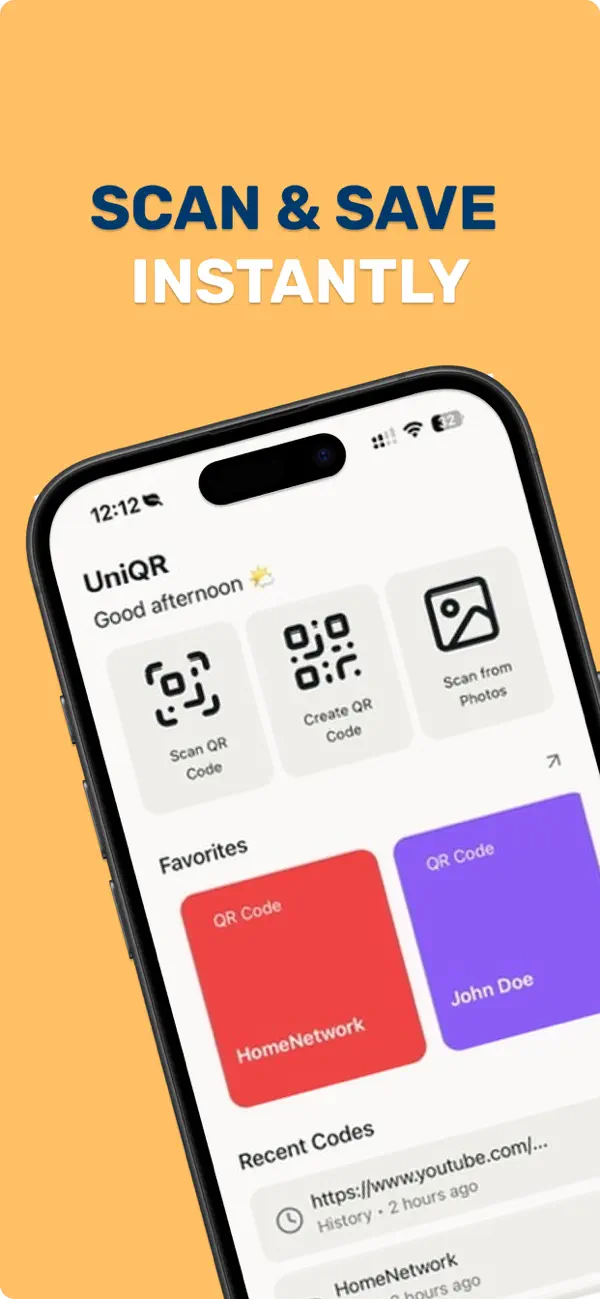
This screenshot was captured from ScanBatch’s real continuous scanner. We reproduced the workflow described here in the app: open the scanner, present codes one after another without returning to a start screen, then leave the camera view and review the saved records. Readers can repeat the same path with any safe test QR codes; recognition still depends on label quality, focus, and lighting.
A reliable continuous scanning workflow
1. Decide what one session represents
Before opening the camera, define the boundary of the job. One session might represent a room, delivery, event entrance, shelf, or daily inspection. A clear boundary makes later review easier and reduces the chance that unrelated records end up together.
Create or choose a collection with a descriptive name such as “Warehouse A — aisle 4,” “Morning check-in,” or “Equipment audit — floor 2.” Names based on place, task, and date remain understandable when you revisit the export weeks later.
2. Prepare the labels and camera
Move loose items into a stable sequence. On shelves, scan left to right and top to bottom. For paperwork, arrange pages before beginning. Clean the camera lens and provide enough light to distinguish the complete code from its background.
Hold the phone steady and let one code dominate the camera view. If neighboring labels keep entering the frame, move closer or cover them temporarily. Reflective packaging may require a slight angle to avoid glare. A damaged code may need a slower, closer pass.
3. Scan without leaving the camera flow
Open ScanBatch’s scanner and capture the first QR code. After it is recognized, move directly to the next label. Continue in the physical order you selected instead of jumping around the area.
A steady rhythm is more useful than rushing. Watch for visual confirmation before moving. If a label is not recognized, adjust distance, angle, or light rather than repeatedly waving the camera. Separate questionable items for a second pass so they do not interrupt the whole sequence.
4. Add notes where context matters
A decoded QR value may identify an item but not its condition or location. Add a short note when the surrounding fact matters: “seal broken,” “moved to rack B,” “guest needs assistance,” or “label replaced.” Keep notes factual and consistent.
Do not use notes as a substitute for a collection structure. Shared context belongs in the collection name; exceptions belong on individual records. This keeps exported rows readable and avoids repeating the same location on every scan.
5. Review before export
At the end of the physical area, pause and compare the saved list with the expected items. Check obvious omissions, unexpected values, and accidental repeat captures. ScanBatch records what the camera reads; it cannot know whether two identical codes represent an intended repeat or an operator mistake.
For workflows where duplicates matter, establish a rule before starting. Event staff may treat a repeated ticket as an exception, while inventory staff may expect repeated product barcodes because several units share one UPC. Resolve duplicate meaning against your source list or business process rather than assuming every repeat is wrong.
6. Export the useful scope
Export the individual collection when only this job should enter the spreadsheet. Export full history only when the report genuinely needs records from multiple sessions. CSV is portable and can be opened or imported by Numbers, Excel, Google Sheets, and many reporting tools.
Our CSV export guide explains delimiter-safe handling, imports, and review. ScanBatch provides the CSV file; it does not claim a direct live integration with those spreadsheet products.
Example: scanning codes during a room audit
Suppose a team needs to record QR labels on 60 devices across three rooms. Create one collection per room. Walk each room clockwise, scanning from the doorway onward. Add notes only for exceptions such as missing accessories or damaged labels. At each doorway, compare the rough device count with the collection before moving on.
After all rooms are complete, export each collection. In a spreadsheet, add reference columns from the asset register and reconcile captured values against expected values. Keeping room boundaries separate makes missing equipment easier to investigate than one undifferentiated list would.
The same pattern works for barcode asset tracking: define scope, capture in order, note exceptions, review, and export.
Limitations to plan around
Camera scanning depends on label quality, focus, lighting, and supported formats. Tiny, low-contrast, curved, obscured, or damaged QR codes may require individual attention. Codes that decode successfully can still contain outdated or incorrect source data.
Offline scanning keeps core capture available without a connection, but a QR code that points to a website still needs connectivity when you choose to open that destination. Learn when local-first capture helps in the offline scanning guide.
Continuous scanning also does not replace validation. If your project requires each value to match a registration list, inventory system, or shipping manifest, reconcile the export with that authoritative source.
Keep the process repeatable
The strongest batch workflow is not the fastest camera movement. It is a repeatable path that another person can understand: descriptive collection, consistent physical order, concise exception notes, end-of-session review, and appropriately scoped export.
ScanBatch combines continuous scanning, collections, notes, and CSV export in one local-first workflow. Download ScanBatch from the homepage to turn your next stack of QR codes into an organized list.